
Mobile to PC: Easy Ways to Transfer Files and Connect Your Phone
Moving files from a mobile phone to a PC is something many people need every day. Whether you want to transfer photos, videos, documents, music, contacts, or backups, the right mobile to PC method can save time and prevent data loss.
Fortunately, you don’t need complicated technical skills. Modern Android phones and iPhones offer several convenient ways to connect to a computer. In this guide, we’ll explore the most reliable methods, their advantages, and practical tips for transferring data safely.
What Does Mobile to PC Mean?
Mobile to PC generally refers to connecting a smartphone to a Windows computer or another desktop system to transfer data, manage files, back up information, or control the phone from the computer.
For example, you might connect your Android phone to a PC to copy a large collection of photos. Alternatively, you could use cloud storage to move documents without a physical cable.
The best method depends on your phone, computer, file size, internet connection, and security requirements.
Best Ways to Transfer Mobile Data to PC
1. USB Cable Transfer
A USB cable is usually the fastest and most straightforward method, especially for large files.
Connect your phone to the PC using a compatible USB cable. On Android, unlock the phone and select File Transfer or MTP when the USB notification appears. Your phone should then appear in Windows File Explorer.
You can open folders such as DCIM, Pictures, Downloads, and Documents, then copy the files you need.
Best for: Large videos, photos, documents, and complete folders.
2. Transfer Files Using Wi-Fi
Wireless transfer is useful when you don’t have a suitable USB cable or want to avoid connecting your phone physically.
Depending on your devices, you can use built-in wireless sharing features or reputable file-transfer applications. Both devices generally need to be connected to the same Wi-Fi network.
Wi-Fi transfers can be particularly convenient for moving photos and documents between devices without cables.
Best for: Everyday file transfers and situations where convenience matters.
3. Use Cloud Storage
Cloud storage is another flexible mobile to PC file transfer option. Upload files from your phone to a cloud service, then sign in to the same account on your computer and download or synchronize them.
This approach can also provide an additional copy of important files, although cloud storage should not be considered your only backup.
Best for: Documents, photos, smaller files, and accessing data from multiple devices.
4. Bluetooth File Transfer
Bluetooth can transfer files without cables or an internet connection, provided your phone and PC support the necessary Bluetooth features.
However, Bluetooth is generally slower than USB or modern Wi-Fi-based methods, particularly when transferring large videos.
Best for: Small files when other transfer options aren’t available.
How to Transfer Photos and Videos from Mobile to PC
Photos and videos are among the most common files people move from smartphones to computers.
For Android devices, USB transfer is usually simple: connect the phone, choose File Transfer, open File Explorer, locate the DCIM folder, and copy the desired media.
For iPhones, you can use Apple’s supported synchronization and import options, or cloud-based services, depending on your computer and preferred workflow.
Before deleting anything from your phone, open several transferred files on your PC to make sure the transfer completed successfully.
Mobile to PC Screen Mirroring
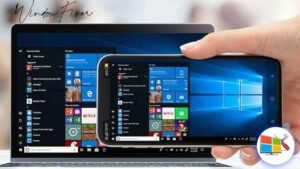
Mobile-to-PC connectivity isn’t limited to file transfers. You can also mirror or interact with your phone from a computer using supported software and device features.
Screen mirroring can be useful for presentations, viewing mobile content on a larger display, troubleshooting, or responding to messages from a desktop environment.
Availability and features vary by smartphone model and operating system, so check that your devices support the specific functionality you want.
Tips for Safe Mobile to PC Transfers
Keep Your Devices Updated
Use the latest available operating system and security updates. Updated devices are generally better protected against known security vulnerabilities.
Use Trusted Software
If you install a third-party file-transfer application, download it from a reputable source and review its permissions carefully.
Don’t Disconnect During Transfers
Interrupting a large file transfer can result in incomplete or corrupted files. Wait until the transfer finishes before disconnecting your phone.
Back Up Important Data
For valuable photos, work documents, and personal files, consider maintaining more than one copy. A PC backup combined with secure cloud storage can provide additional protection against accidental loss.
Which Mobile to PC Method Is Best?
The right option depends on your needs:
- USB: Best for speed and large files.
- Wi-Fi: Best for convenient wireless transfers.
- Cloud storage: Best for accessing files across multiple devices.
- Bluetooth: Best for occasional small transfers.
- Screen mirroring: Best for viewing or interacting with mobile content on a PC.
Conclusion
A mobile to PC connection can make managing your smartphone data much easier. Whether you’re transferring hundreds of photos through USB, sending documents over Wi-Fi, or backing up important files to cloud storage, there are several reliable options available.
For large transfers, USB is often the most practical choice, while wireless and cloud solutions offer greater convenience. Choose the method that fits your devices and always verify important files after transferring them. With the right approach, moving data from your mobile phone to your PC can be fast, simple, and secure.